---
title: "AWS Key Management Service (KMS)"
description: "Encrypt your Ennote secrets with your own AWS KMS key: create an asymmetric RSA_4096 encrypt/decrypt key, grant the Ennote IAM role access to it, add it in Ennote and switch your organization's encryption to it."
canonical_url: "https://docs.ennote.io/docs/integration/kms/aws"
---
# AWS Key Management Service (KMS)
> Encrypt your Ennote secrets with your own AWS KMS key: create an asymmetric RSA_4096 encrypt/decrypt key, grant the Ennote IAM role access to it, add it in Ennote and switch your organization's encryption to it.
Available on the **Business** [plan](https://ennote.io/pricing/).
## Configuring AWS KMS for Ennote
This guide assumes you have already created an IAM role and an [AWS Connection](https://docs.ennote.io/docs/integration/connections/aws) in Ennote.
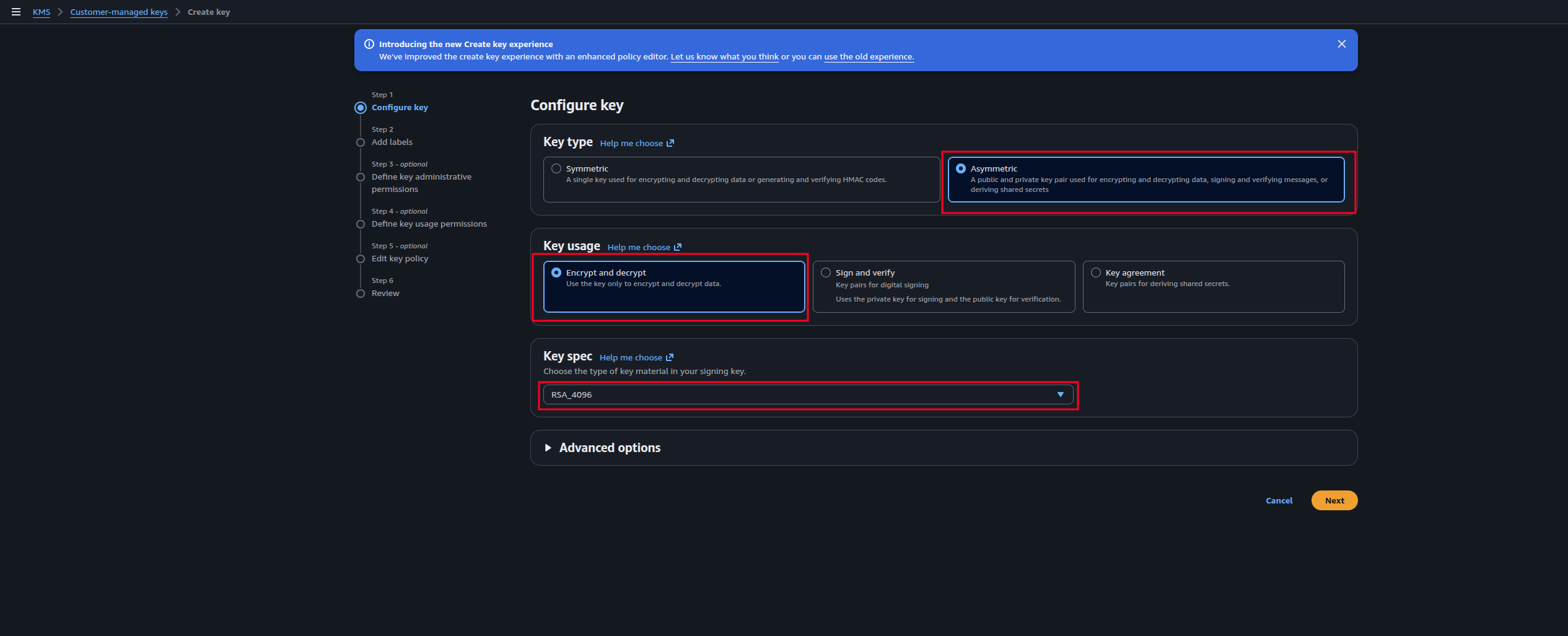
Ennote uses an **asymmetric RSA_4096** key with the **Encrypt and decrypt** usage. Ennote encrypts with the key's public key and calls AWS KMS to decrypt, so the private key never leaves AWS. Symmetric keys and other key specs are not supported.
### Open Customer-managed keys
In the AWS Console, navigate to Key Management Service (KMS) -> [Customer-managed keys](https://console.aws.amazon.com/kms/home#/kms/keys) and click **Create key**.
Create the key in the AWS region where you want your key material to live, the region becomes part of the key ARN.

### Configure the key
On the **Configure key** step, select:
- **Key type:** Asymmetric
- **Key usage:** Encrypt and decrypt
- **Key spec:** RSA_4096
Click **Next**.
### Add an alias and finish
1. On **Add labels**, enter an **Alias** for the key (for example `ennote`) and click **Next**.
2. The **key administrative permissions**, **key usage permissions** and **key policy** steps are optional. Keep the defaults and click **Next**. The default key policy lets IAM policies in your account control access to the key, which the next section relies on.
3. On **Review**, check the settings and click **Finish**.
The new key appears in the list of customer-managed keys.

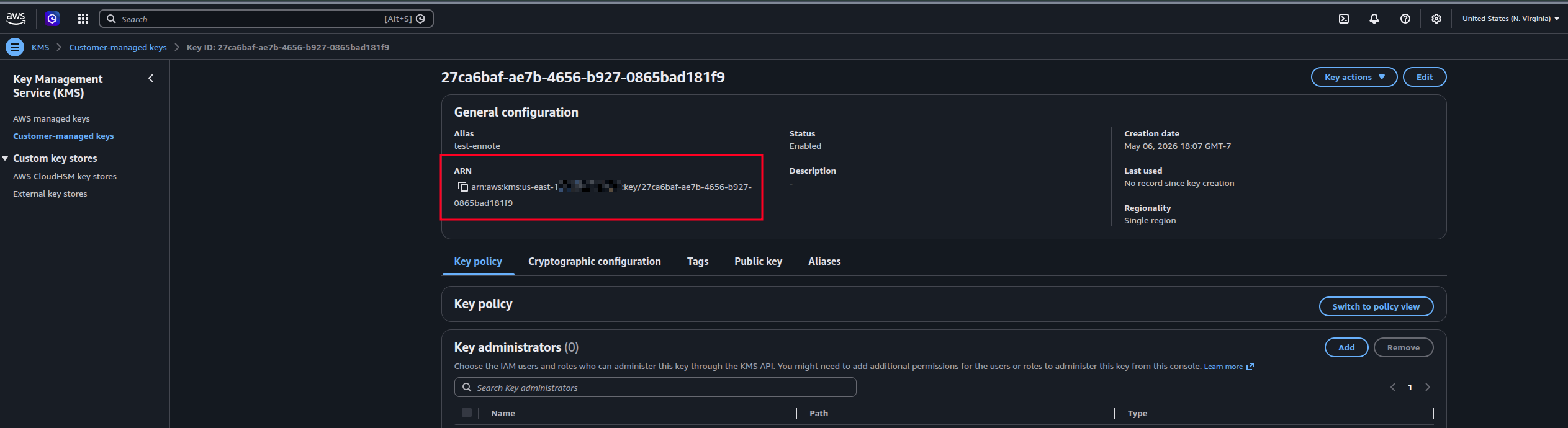
### Copy the key ARN
Open the key and copy its **ARN** from the General configuration section, it has the format `arn:aws:kms:::key/`.
## Granting the IAM role access to the key
The IAM role from your [AWS Connection](https://docs.ennote.io/docs/integration/connections/aws) needs permission to use the key. Following the principle of least privilege, the policy grants only the three actions Ennote needs, on this one key.
### Create an inline policy
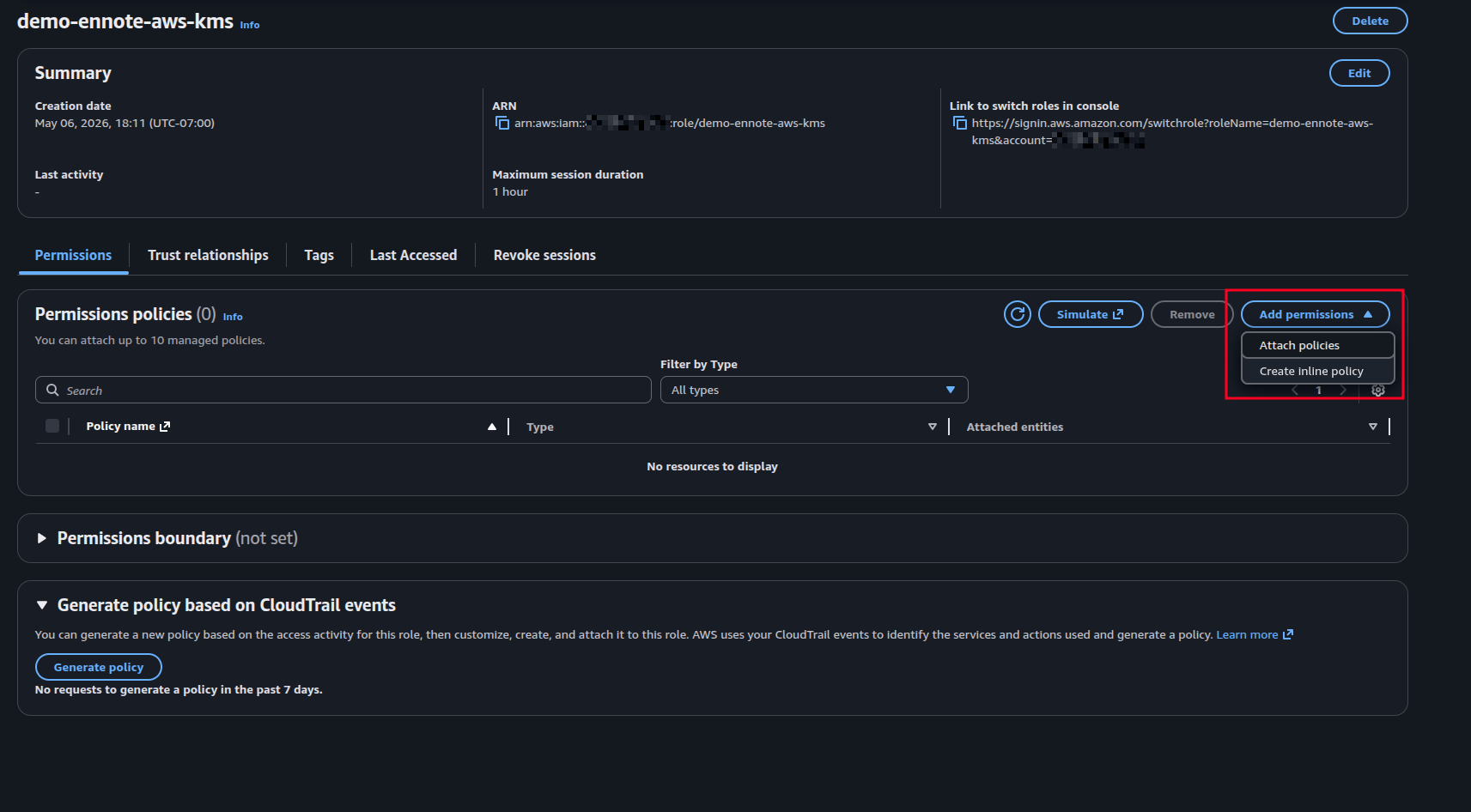
In the AWS Console, navigate to IAM -> [Roles](https://console.aws.amazon.com/iam/home#/roles) and open the role you created for Ennote. Click **Add permissions** -> **Create inline policy**.
### Paste the permissions policy
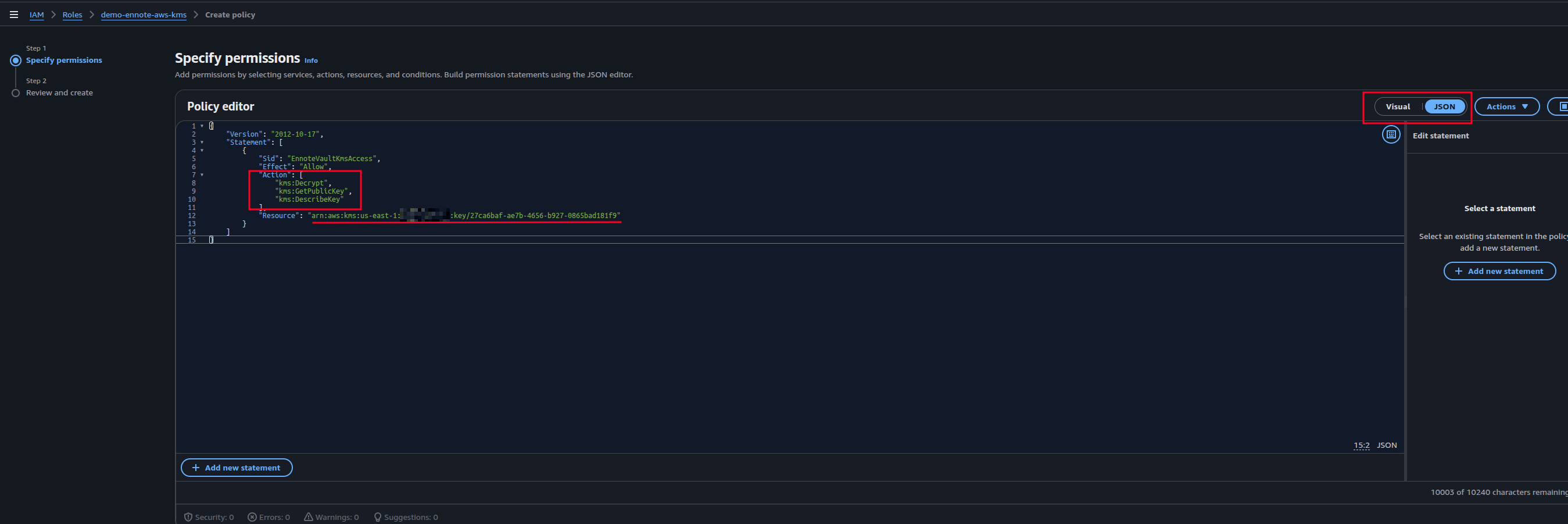
Switch the policy editor to **JSON** and paste the following policy. Replace the `Resource` value with your key ARN, then click **Next**.
```json
{
"Version": "2012-10-17",
"Statement": [
{
"Sid": "EnnoteVaultKmsAccess",
"Effect": "Allow",
"Action": [
"kms:Decrypt",
"kms:GetPublicKey",
"kms:DescribeKey"
],
"Resource": "arn:aws:kms:::key/"
}
]
}
```
- **kms:GetPublicKey:** lets Ennote read the public key it encrypts with.
- **kms:Decrypt:** lets Ennote decrypt data with the private key, which stays in AWS KMS.
- **kms:DescribeKey:** lets Ennote check the key's type, usage and state.
### Name and create the policy
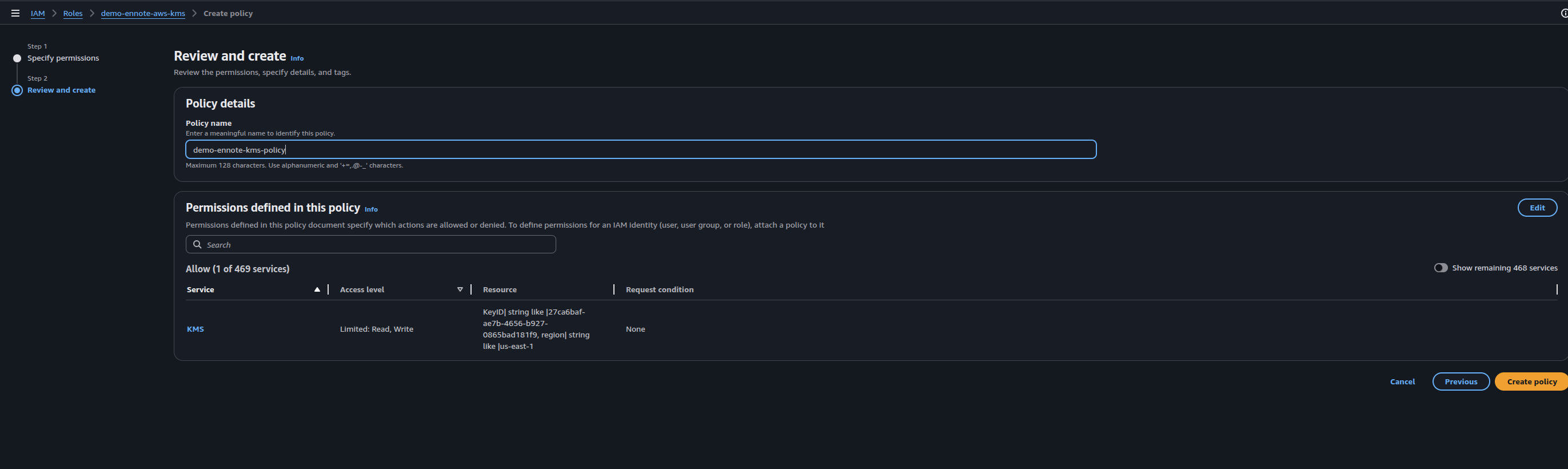
Enter a **Policy name** (for example `ennote-kms-policy`), check that the summary shows **KMS** with access to your key only, and click **Create policy**.
### Policy attached
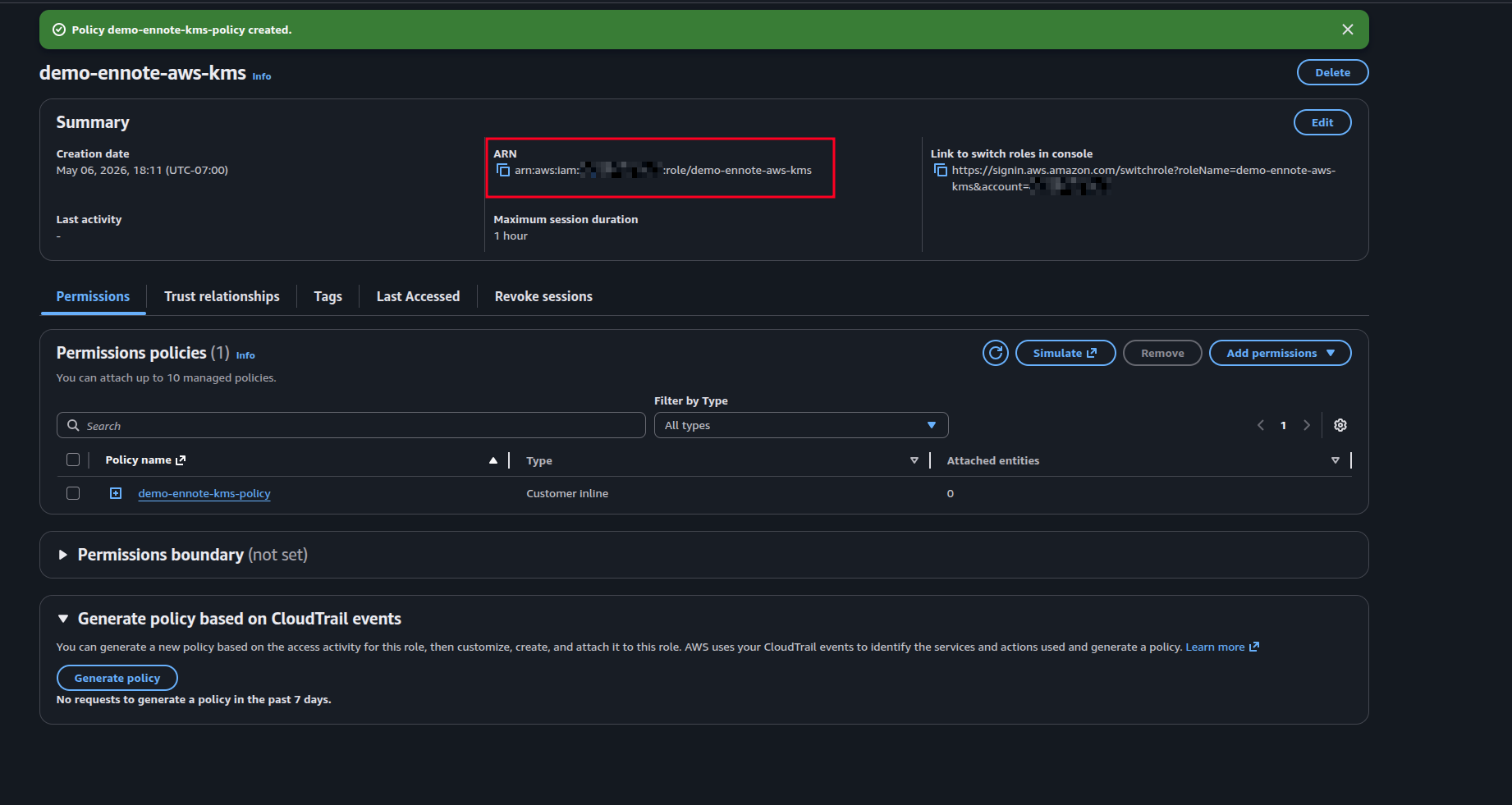
The policy now appears under **Permissions policies** on the role.
## Configuring the KMS Key within Ennote
With the key created and the role allowed to use it, add the key to your Ennote organization.
### Open Encryption settings
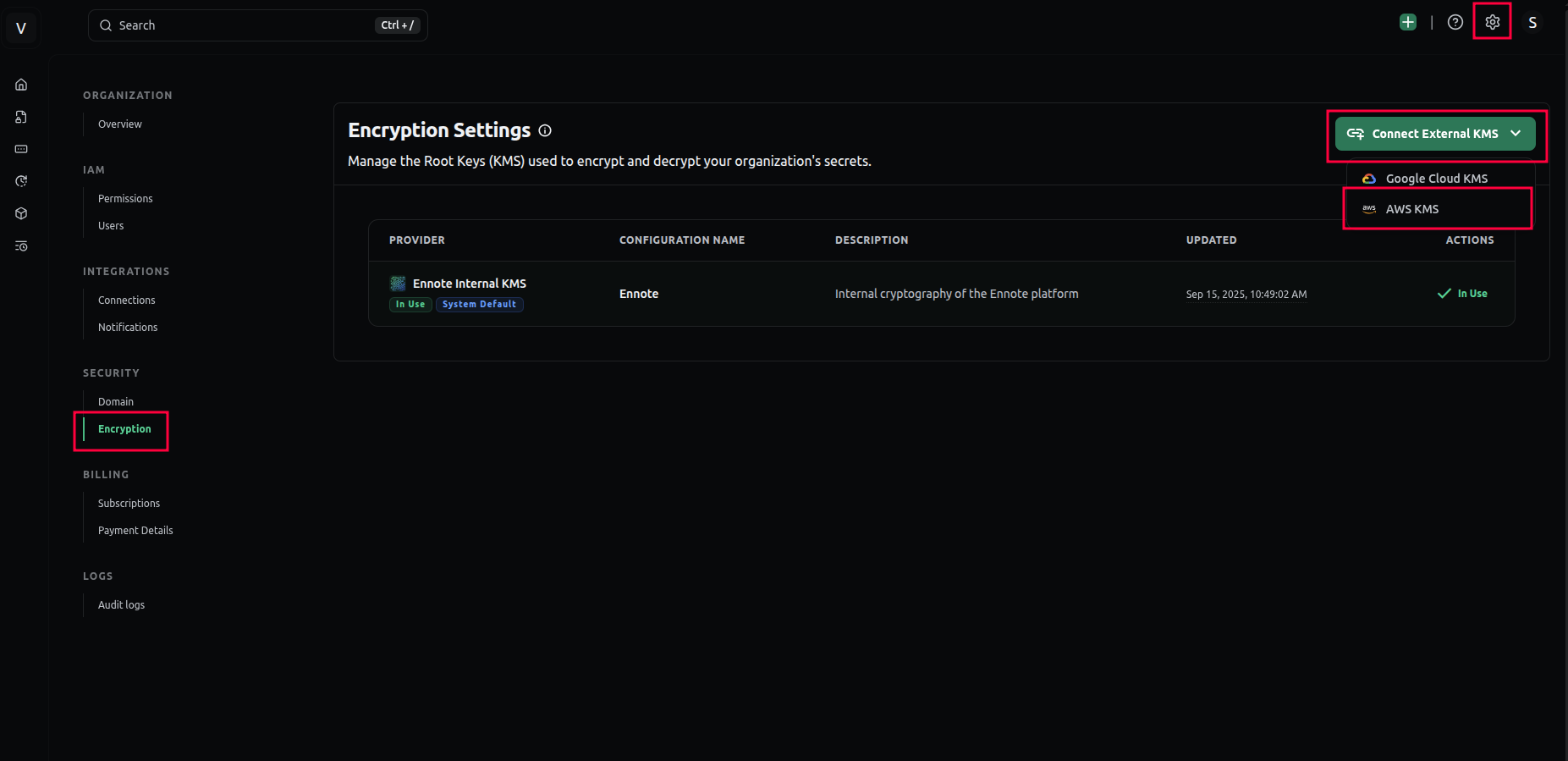
Navigate within Ennote application to the following path: Organization Settings -> Security -> [Encryption](https://app.ennote.io/organization/security/encryption). Click **Connect External KMS** and select **AWS KMS**.
### Fill in the KMS key details
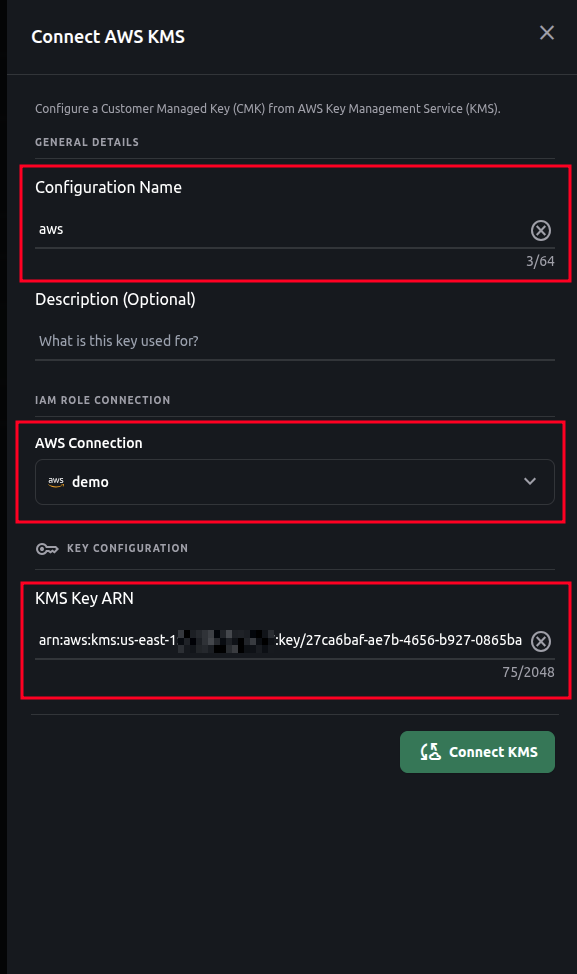
Fill in the **Connect AWS KMS** form:
1. **Configuration Name:** a unique and descriptive name for this KMS key within Ennote.
2. **Description (Optional):** additional context, such as which team or environment this key is for.
3. **AWS Connection:** the AWS connection you created earlier.
4. **KMS Key ARN:** the ARN of the key you created in AWS KMS.
Click **Connect KMS**.
### KMS key added
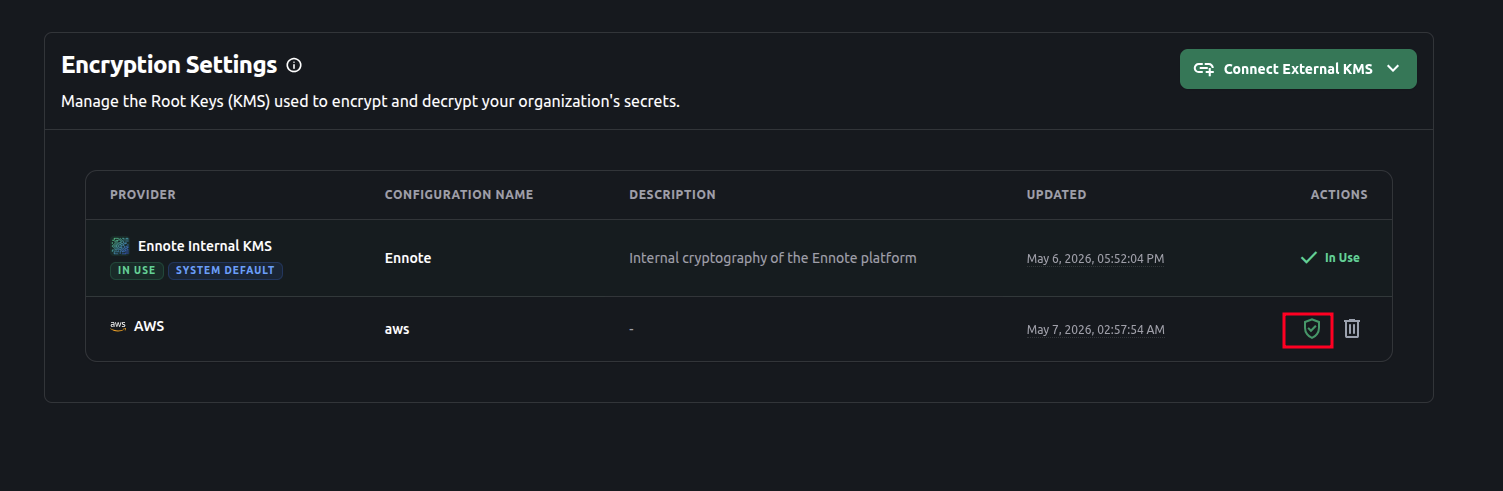
The AWS key appears in the Encryption Settings list. Ennote's internal KMS stays **In Use** until you switch.
## Switching to AWS KMS for Organization Encryption
You are now ready to switch your organization's encryption from Ennote's default KMS to your AWS KMS key. This is a critical step that will re-encrypt all existing secrets.
### Click the activate icon
In the Encryption Settings list, click the shield icon in the **Actions** column of the AWS key.

### Acknowledge the security warning
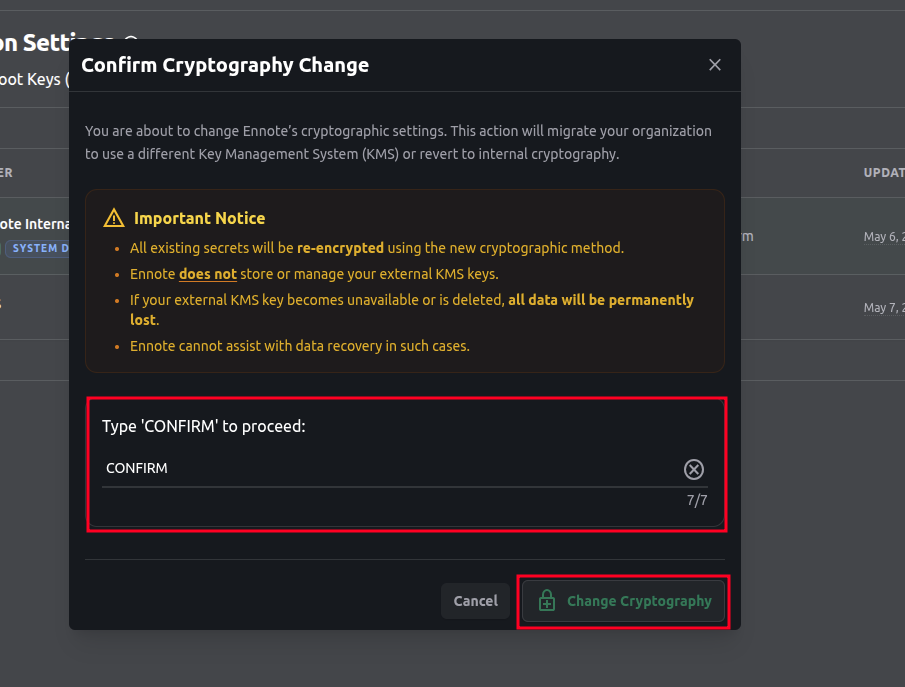
A dialog window will appear with a critical security warning. You must acknowledge the following notices before proceeding.
Important Notice:
- All existing secrets will be **re-encrypted** using the new cryptographic method.
- Ennote does **NOT** store or manage external KMS keys.
- If your external KMS key becomes unavailable or is deleted, **all data will be permanently lost**.
- Ennote cannot assist with data recovery in such cases.
### Type CONFIRM to proceed
Type **CONFIRM** in the field and click **Change Cryptography** to start the change.
### Encryption switched to AWS KMS
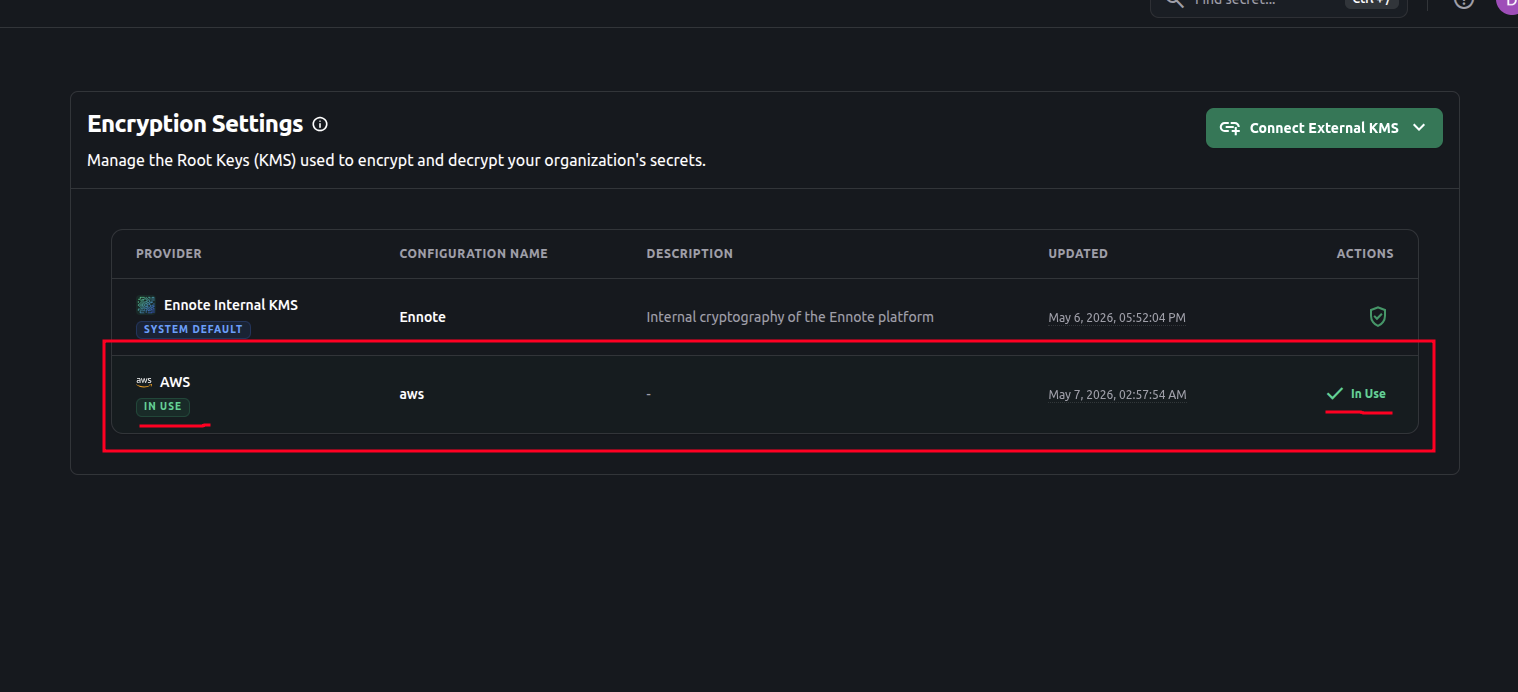
Once complete, the AWS key is marked **In Use** and all secrets in your organization are encrypted with your AWS KMS key. From now on, every encryption and decryption is handled by your key.
Do not disable the key, schedule it for deletion, or remove the IAM role, its trust policy or its permissions policy while the key is in use. Ennote would lose access to the key and your secrets could not be decrypted.
## Sitemap
See the full [sitemap](https://docs.ennote.io/sitemap.md) for all pages.